网页版百度云盘一次性只能选取 100 个文件。如果我要对 500 个文件做批量操作就很困难了。
这时候我们可以在浏览器的地址栏内敲入这行代码,就自动帮您勾选前 100 个文件(夹)了:
javascript:$("span[node-type='chk']:lt(101)").addClass("chked")
网页版百度云盘一次性只能选取 100 个文件。如果我要对 500 个文件做批量操作就很困难了。
这时候我们可以在浏览器的地址栏内敲入这行代码,就自动帮您勾选前 100 个文件(夹)了:
javascript:$("span[node-type='chk']:lt(101)").addClass("chked")
适用于 PowerShell 所有版本
我们可以用 -split 操作符按指定的分隔符来分隔文本。这个操作符接受一个正则表达式作为操作数,所以如果您只是希望用纯文本的表达式来作为分隔的操作数,那么您需要将该纯文本转义一下。
以下是用反斜杠来分隔路径的例子:
$originalText = 'c:\windows\test\file.txt'
$splitText = [RegEx]::Escape('\')

$originalText -split $splitText
结果类似如下,并且它是一个数组:
PS> $originalText -split $splitText
c:
windows
test
file.txt
我们可以将它保存到一个变量中,然后存取单个的数组元素。
PS> $parts = $originalText -split $splitText

PS> $parts[0]
c:

PS> $parts[-1]
file.txt
用 PowerShell 下载 imooc.com 的视频教程
这是一个从 http://www.imooc.com 教学网站批量下载视频的 PowerShell 脚本。默认下载的是最高清晰度的视频。
您可以传入课程专辑的 URL 作为下载参数:
.\Download-Imooc.ps1 http://www.imooc.com/learn/197
可以一口气传入多个课程专辑的 ID 作为参数:
.\Download-Imooc.ps1 75,197
如果不传任何参数的话,将在当前文件夹中搜索已下载的课程,并自动续传。
.\Download-Imooc.ps1
如果希望自动合并所有视频,请使用 -Combine 参数。该参数可以和其它参数同时使用。
.\Download-Imooc.ps1 -Combine
代码中用到了参数分组、-WhatIf 处理等技术,供参考。
以下是源代码:
# Require PowerShell 3.0 or higher.

[CmdletBinding(DefaultParameterSetName='URI', SupportsShouldProcess=$true, ConfirmImpact='Medium')]
Param
(
    [Parameter(ParameterSetName='URI',Position = 0)]
    [string]
    $Uri, # 'http://www.imooc.com/learn/197'

    [Parameter(ParameterSetName='ID', Position = 0)]
    [int[]]
    $ID, # @(75, 197)

    [Switch]
    $Combine, # = $true

    [Switch]
    $RemoveOriginal
)

# $DebugPreference = 'Continue' # Continue, SilentlyContinue
# $WhatIfPreference = $true # $true, $false

# 修正文件名,将文件系统不支持的字符替换成“.”
function Fix-FileName {
    Param (
        $FileName
    )

    [System.IO.Path]::GetInvalidFileNameChars() | ForEach-Object {
        $FileName = $FileName.Replace($_, '.')
    }

    return $FileName
}

# 修正目录名,将文件系统不支持的字符替换成“.”
function Fix-FolderName {
    Param (
        $FolderName
    )

    [System.IO.Path]::GetInvalidPathChars() | ForEach-Object {
        $FolderName = $FolderName.Replace($_, '.')
    }

    return $FolderName
}

# 从专辑页面中分析标题和视频页面的 ID。
function Get-ID {
    Param (
        $Uri
    )

    $Uri = $Uri.Replace('/view/', '/learn/')
    $Uri = $Uri.Replace('/qa/', '/learn/')
    $Uri = $Uri.Replace('/note/', '/learn/')
    $Uri = $Uri.Replace('/wiki/', '/learn/')
    $response = Invoke-WebRequest $Uri
    $title = $response.ParsedHtml.title

    echo $title
    $links = $response.Links
    $links | ForEach-Object {
        if ($_.href -cmatch '(?m)^/video/(\d+)$') {
            return [PSCustomObject][Ordered]@{
                Title = $_.InnerText;
                ID = $Matches[1]
            }
        }
    }
}

# 获取视频下载地址。
function Get-VideoUri {
    Param (
        [Parameter(ValueFromPipeline=$true)]
        $ID
    )

    $template = 'http://www.imooc.com/course/ajaxmediainfo/?mid={0}&mode=flash'
    $uri = $template -f $ID
    Write-Debug $uri
    $result = Invoke-RestMethod $uri
    if ($result.result -ne 0) {
        Write-Warning $result.result
    }

    $uri = $result.data.result.mpath.'0'

    # 取最高清晰度的版本。
    $uri = $uri.Replace('L.flv', 'H.flv').Replace('M.flv', 'H.flv')
    return $uri
}

# 创建“.url”快捷方式。
function New-ShortCut {
    Param (
        $Title,
        $Uri
    )

    $shell = New-Object -ComObject 'wscript.shell'
    $dir = pwd
    $path = Join-Path $dir "$Title\$Title.url"
    $lnk = $shell.CreateShortcut($path)
    $lnk.TargetPath = $Uri
    $lnk.Save()
}

function Assert-PSVersion {
    if (($PSVersionTable.PSCompatibleVersions | Where-Object Major -ge 3).Count -eq 0) {
        Write-Error '请安装 PowerShell 3.0 以上的版本。'
        exit
    }
}

function Get-ExistingCourses {
    Get-ChildItem -Directory | ForEach-Object {
        $folder = $_
        $expectedFilePath = (Join-Path $folder $folder.Name) + '.url'
        if (Test-Path -PathType Leaf $expectedFilePath) {
            $shell = New-Object -ComObject 'wscript.shell'
            $lnk = $shell.CreateShortcut($expectedFilePath)
            $targetPath = $lnk.TargetPath
            if ($targetPath -cmatch '(?m)\A^http://www\.imooc\.com/\w+/\d+$\z') {
                echo $targetPath
            }
        }
    }
}

# 下载课程。
function Download-Course {
    Param (
        [string]$Uri
    )

    Write-Progress -Activity '下载视频' -Status '分析视频 ID'
    $title, $ids = Get-ID -Uri $Uri
    Write-Output "课程名称:$title"
    Write-Debug $title
    $folderName = Fix-FolderName $title
    Write-Debug $folderName
    if (-not (Test-Path $folderName)) { $null = mkdir $folderName }
    New-ShortCut -Title $title -Uri $Uri

    $outputPathes = New-Object System.Collections.ArrayList
    $actualDownloadAny = $false
    #$ids = $ids | Select-Object -First 3
    $ids | ForEach-Object {
        if ($_.Title -cnotmatch '(?m)^\d') {
            return
        }

        $title = $_.Title
        Write-Progress -Activity '下载视频' -Status '获取视频地址'
        $videoUrl = Get-VideoUri $_.ID
        $extension = ($videoUrl -split '\.')[-1]

        $title = Fix-FileName $title
        $outputPath = "$folderName\$title.$extension"
        $null = $outputPathes.Add($outputPath)
        Write-Output $title
        Write-Debug $videoUrl
        Write-Debug $outputPath

        if (Test-Path $outputPath) {
            Write-Debug "目标文件 $outputPath 已存在,自动跳过"
        } else {
            Write-Progress -Activity '下载视频' -Status "下载《$title》视频文件"
            if ($PSCmdlet.ShouldProcess("$videoUrl", 'Invoke-WebRequest')) {
                Invoke-WebRequest -Uri $videoUrl -OutFile $outputPath
                $actualDownloadAny = $true
            }
        }
    }

    $targetFile = "$folderName\$folderName.flv"
    #if ($Combine -and ($actualDownloadAny -or -not (Test-Path $targetFile))) {
    if ($Combine) {
        # -and ($actualDownloadAny -or -not (Test-Path $targetFile))) {
        if ($actualDownloadAny -or -not (Test-Path $targetFile) -or (Test-Path $targetFile) -and $PSCmdlet.ShouldProcess('分段视频', '合并')) {
            Write-Progress -Activity '下载视频' -Status '合并视频'
            Write-Output ("合并视频(共 {0:N0} 个)" -f $outputPathes.Count)
            $outputPathes.Insert(0, $targetFile)

            $eap = $ErrorActionPreference
            $ErrorActionPreference = "SilentlyContinue"
            .\FlvBind.exe $outputPathes.ToArray()
            $ErrorActionPreference = $eap

            <#
            $outputPathes = $outputPathes | ForEach-Object {
                "`"$_`""
            }
            Start-Process `
                -WorkingDirectory (pwd) `
                -FilePath .\FlvBind.exe `
                -ArgumentList $outputPathes `
                -NoNewWindow `
                -Wait `
                -ErrorAction SilentlyContinue `
                -WindowStyle Hidden
            #>
            if ($?) {
                Write-Output '视频合并成功'
                if ($RemoveOriginal -and $PSCmdlet.ShouldProcess('分段视频', '删除')) {
                    $outputPathes.RemoveAt(0)
                    $outputPathes | ForEach-Object {
                        Remove-Item $_
                    }
                    Write-Output '原始视频删除完毕'
                }
            } else {
                Write-Warning '视频合并失败'
            }
        }
    }
}

Assert-PSVersion

# 判断参数集
$chosen= $PSCmdlet.ParameterSetName
if ($chosen -eq 'URI') {
    if ($Uri) {
        Download-Course $Uri
    } else {
        Get-ExistingCourses | ForEach-Object {
            Download-Course $_
        }
    }
}
if ($chosen -eq 'ID') {
    $template = 'http://www.imooc.com/learn/{0}'
    $ID | ForEach-Object {
        $Uri = $template -f $_
        Download-Course $Uri
    }
}
您也可以从这里下载完整的代码。
适用于 PowerShell 所有版本
要删除重复的空格,请使用这个正则表达式:
PS> '[  Man, it    works!   ]' -replace '\s{2,}', ' '
[ Man, it works! ]
您也可以用这种方式将固定宽度的文本表格转成 CSV 数据:
PS> (qprocess) -replace '\s{2,}', ','
>tobias,console,1,3876,taskhostex.exe
>tobias,console,1,3844,explorer.exe
>tobias,console,1,4292,tabtip.exe
当得到 CSV 数据之后,您可以用 ConvertFrom-Csv 将文本数据转换为对象:
PS> (qprocess) -replace '\s{2,}', ',' | ConvertFrom-Csv -Header Name, Session, ID, Pid, Process


Name    : >tobias
Session : console
ID      : 1
Pid     : 3876
Process : taskhostex.exe

Name    : >tobias
Session : console
ID      : 1
Pid     : 3844
Process : explorer.exe

Name    : >tobias
Session : console
ID      : 1
Pid     : 4292
Process : tabtip.exe
(...)
适用于 PowerShell 所有版本
您也许听说过长网址的缩短服务。有许多这类免费的服务。以下是一个将任何网址转化为短网址的脚本:
$OriginalURL = 'http://www.powertheshell.com/isesteroids2'

$url = "http://tinyurl.com/api-create.php?url=$OriginalURL"
$webclient = New-Object -TypeName System.Net.WebClient
$webclient.DownloadString($url)
只需要将需要缩短的网址赋给 $OriginalURL,运行脚本。它将返回对应的短网址。
PowerShell 技能连载 - 查找 PowerShell 函数
适用于 PowerShell 3.0 或更高版本
要快速扫描您的 PowerShell 脚本仓库并在其中查找某个函数,请使用以下过滤器:
filter Find-Function
{
   $path = $_.FullName
   $lastwrite = $_.LastWriteTime
   $text = Get-Content -Path $path

   if ($text.Length -gt 0)
   {

      $token = $null
      $errors = $null
      $ast = [System.Management.Automation.Language.Parser]::ParseInput($text, [ref] $token, [ref] $errors)
      $ast.FindAll({ $args[0] -is [System.Management.Automation.Language.FunctionDefinitionAst] }, $true) |
      Select-Object -Property Name, Path, LastWriteTime |
      ForEach-Object {
         $_.Path = $path
         $_.LastWriteTime = $lastwrite
         $_
      }
   }
}
以下是扫描您的用户配置文件中所有定义了函数的 PowerShell 脚本的方法:
PS> dir $home -Filter *.ps1 -Recurse -Exclude *.ps1xml | Find-Function
  Name                       Path                       LastWriteTime
  ----                       ----                       -------------
  Inject-LogonCredentials    C:\Users\Tobias\Desktop... 06.01.2014 02:43:00
  Test-Command               C:\Users\Tobias\Desktop... 06.03.2014 10:17:02
  Test                       C:\Users\Tobias\Desktop... 30.01.2014 09:32:20
  Get-WebPictureOriginal     C:\Users\Tobias\Desktop... 11.12.2013 11:37:53
  Get-ConnectionString       C:\Users\Tobias\Documen... 23.05.2014 10:49:09
  Convert-SID2User           C:\Users\Tobias\Documen... 23.05.2014 15:33:06
  Lock-Screen                C:\Users\Tobias\Documen... 19.03.2014 12:51:54
  Show-OpenFileDialog        C:\Users\Tobias\Documen... 16.05.2014 13:42:16
  Show-UniversalData         C:\Users\Tobias\Documen... 16.05.2014 13:23:20
  Start-TimebombMemory       C:\Users\Tobias\Documen... 23.05.2014 09:12:28
  Stop-TimebombMemory        C:\Users\Tobias\Documen... 23.05.2014 09:12:28
  (...)
只需要将结果通过管道输出到 Out-GridView 就能查看完整的信息。
搜集到的所有 PowerShell 电子书 共享链接
将来一旦有更新,就会自动同步、自动更新,再也不用为资料发愁了。如果您也有好料想一起分享,请在群里发个消息,我把读写权限给您。
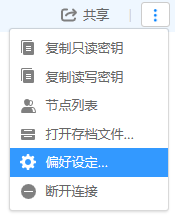
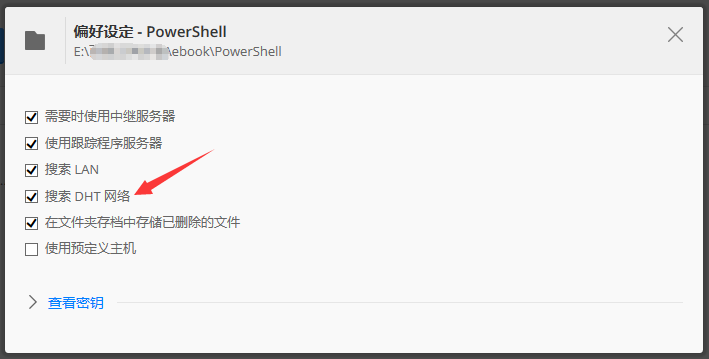
最好在客户端的 文件夹 / 偏好设定 中的 搜索 DHT 网络 前打上勾,可以提高成功率 :)
适用于 PowerShell 所有版本
如果您想将一个 PowerShell 命令的结果保存到磁盘上,以便传到另一台机器上,以下是简单的实现方法:
$Path = "$env:temp\mylist.xml"

Get-Service |
  Add-Member -MemberType NoteProperty -Name ComputerName -Value $env:COMPUTERNAME -PassThru |
  Export-Clixml -Depth 1 -Path $Path

explorer.exe "/select,$Path"
这段代码用 Get-Service 获取所有的服务。结果添加了一个“ComputerName”字段,用于保存生成的数据所在的计算机名。
然后,得到的结果被序列化成 XML 并保存到磁盘上。接着在目标文件夹打开资源管理器,并且选中创建的 XML 文件。这样您就可以方便地将它拷到 U 盘中随身带走。
要将结果反序列化成真实的对象,使用以下代码:
$Path = "$env:temp\mylist.xml"

Import-Clixml -Path $Path
适用于 PowerShell 3.0 或更高版本
假设您在两台服务器上启用了 PowerShell 远程服务,那么下面这个简单的脚本演示了如何从每台服务器上获取所有服务的状态并且计算两台服务器之间的差异。
$Server1 = 'myServer1'
$Server2 = 'someOtherServer'

$services1 = Invoke-Command { Get-Service } -ComputerName $Server1 |
  Sort-Object -Property Name, Status

$services2 = Invoke-Command { Get-Service } -ComputerName $Server2 |
  Sort-Object -Property Name, Status

Compare-Object -ReferenceObject $services1 -DifferenceObject $services2 -Property Name, Status -PassThru |
  Sort-Object -Property Name
得到的结果是服务配置差异的清单。
PowerShell 技能连载 - 下载 PowerShell 语言规范
适用于 PowerShell 所有版本
在 PowerShell 中,从 Internet 中下载文件十分方便。以下这段代码能够自动将 PowerShell 语言规范——包含 PowerShell 精华和内核知识的很棒的 Word 文档——下载到您的机器上。
$link = 'http://download.microsoft.com/download/3/2/6/326DF7A1-EE5B-491B-9130-F9AA9C23C29A/PowerShell%202%200%20Language%20Specification.docx'

$outfile = "$env:temp\languageref.docx"

Invoke-WebRequest -Uri $link -OutFile $outfile

Invoke-Item -Path $outfile
